Time, with a little motion.
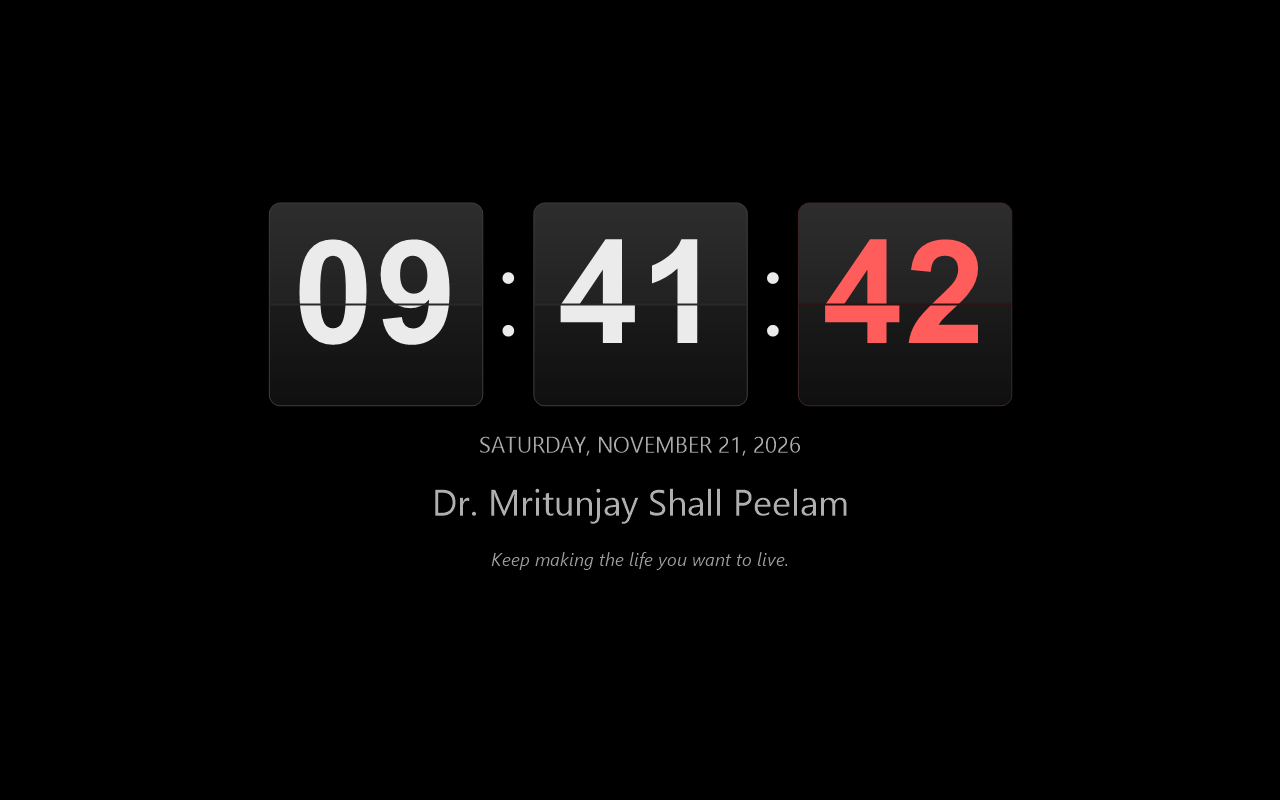
Hours, minutes and seconds appear on animated flip cards. The seconds card cycles through accent colors, while the date, display name and an hourly quote add a personal touch.
A calm, customizable flip clock that lives on your Windows screen saver. Choose the look, settle into the moment, and let the seconds fall into place.
Windows screen saver · No extra runtime requiredReal screenshots from Flip Clock on Windows. Set up your display, then enjoy a quiet, full-screen clock.
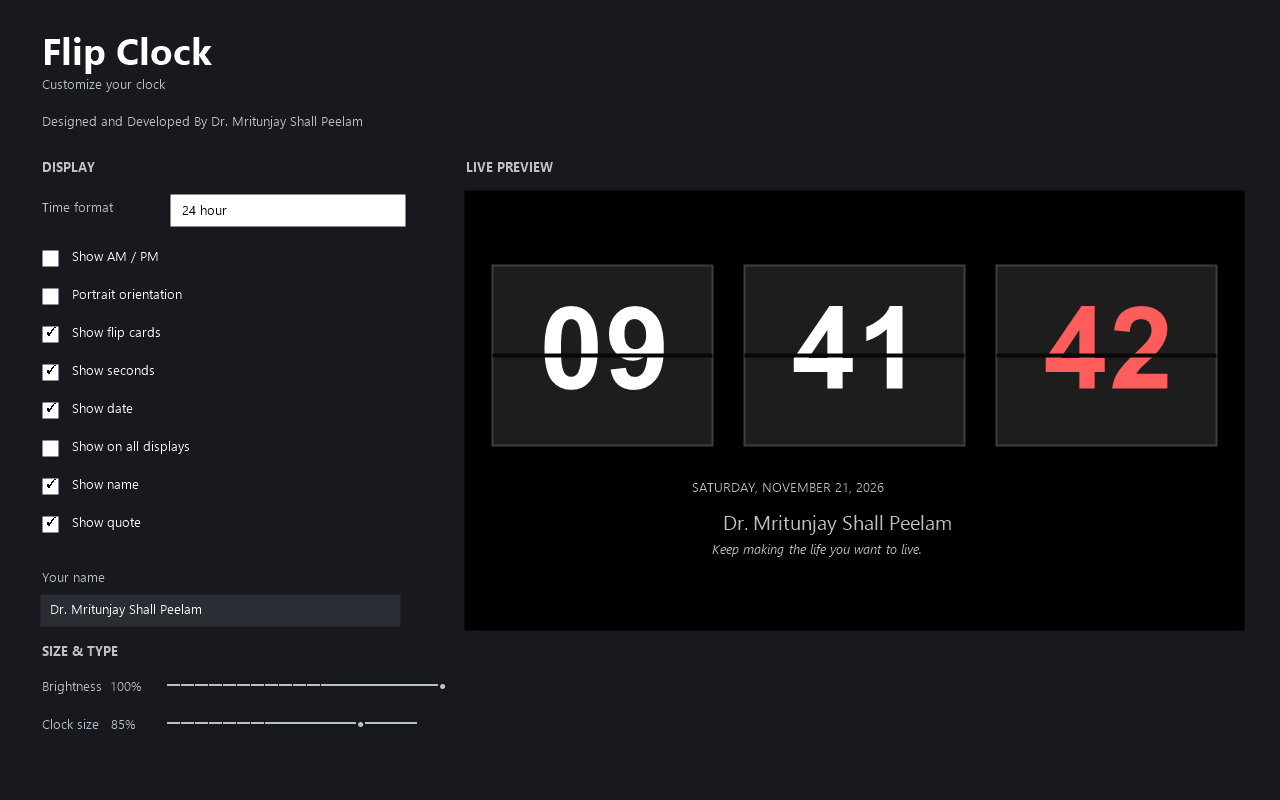
Personalize your clock below, then open it full screen.
Try the settings and watch the clock update as you make each change.
Your choices are saved in this browser for the preview. The downloadable Windows clock has its own settings in Windows Screen Saver Settings.
Adjust any setting to preview your clock. Press Esc to leave full screen.
Hours, minutes and seconds appear on animated flip cards. The seconds card cycles through accent colors, while the date, display name and an hourly quote add a personal touch.
Choose 12 or 24-hour time, portrait or landscape orientation, brightness, card style and clock size. Adjust digit and text sizes to suit your display.
Choose which connected displays show the clock. Optional date, name and quote controls let you keep the screen as minimal or personal as you like.
Flip Clock is a self-contained Windows screensaver with no Python runtime or extra packages. Preferences stay in your Windows user profile.
The installer handles the setup. You choose the look.
Open Flip Clock Setup.exe and choose an optional display name.
The installer adds desktop shortcuts and opens Windows Screen Saver Settings. Select Flip Clock and click Apply.
Open Flip Clock Settings to choose orientation, brightness, time format, displays, and what appears on screen.